

Blog
Why Your Office WiFi Keeps Dropping Out (and What’s Actually Causing It)
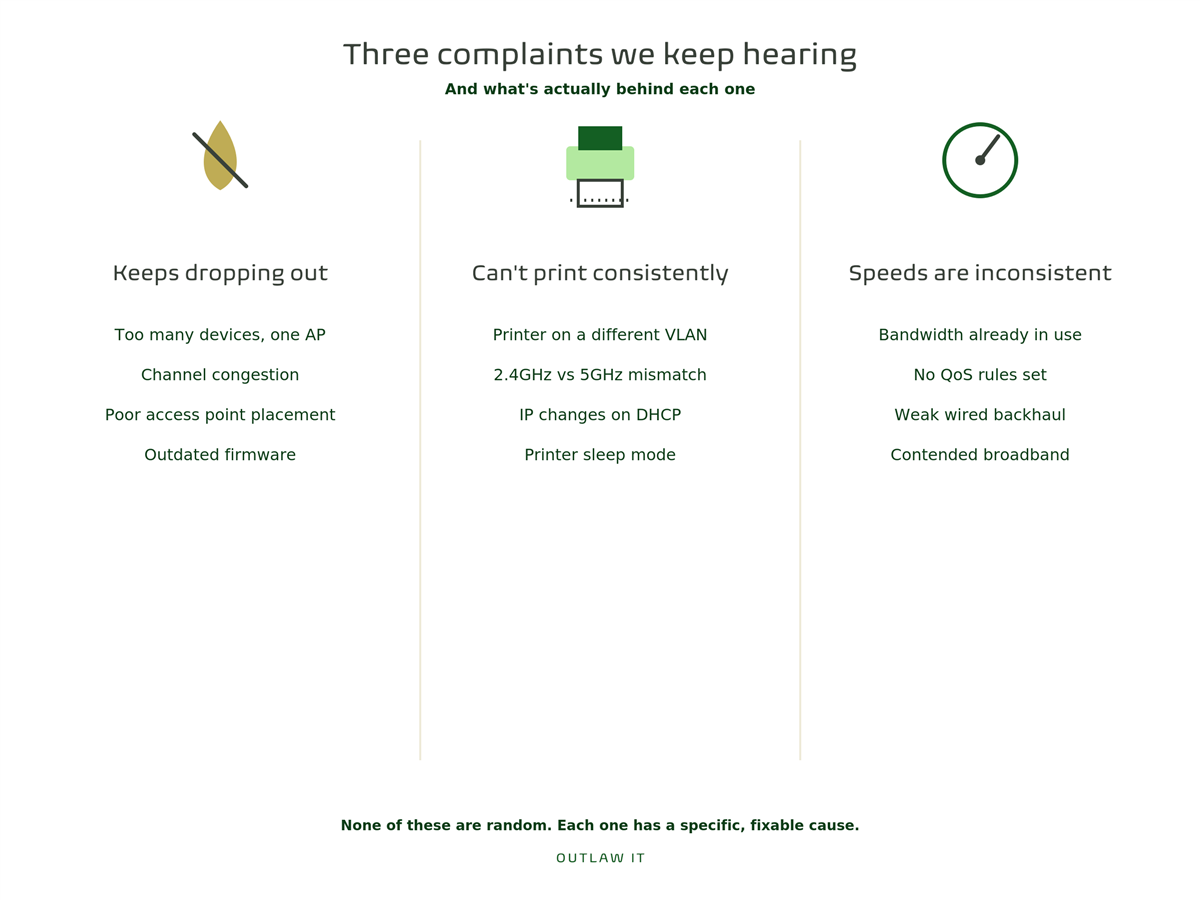
We’ve had a noticeable spike in the same few questions from clients and new enquiries lately. Connections that drop out for no reason. A printer that works fine from one desk and refuses to connect from another. WiFi that’s fast in the morning and unusable by 3pm.
None of these are random. Office WiFi problems almost always trace back to a small number of causes, and most of them are fixable without ripping out your entire setup. Here’s what’s actually going on, and what to do about each one.
“Our WiFi Keeps Dropping Out”
This is the most common complaint we hear, and it usually comes down to one of four things.
Too many devices on one access point. Consumer routers and single access points are typically rated for a certain number of concurrent connections before performance degrades. Add laptops, phones, tablets, printers, smart TVs, and the odd IoT gadget in a meeting room, and a small office can easily have 40+ devices trying to talk to one router built for a household of five.
Channel congestion. WiFi operates on specific channels, and in the 2.4GHz band there are really only three that don’t overlap with each other (1, 6, and 11 in the UK). If you’re in a shared building, or near other businesses, there’s a good chance several neighbouring networks are all fighting over the same channel. Your router doesn’t know this. It just keeps trying, and connections suffer as a result.
Access point placement. WiFi signal degrades through walls, floors, metal filing cabinets, and even large groups of people. A single access point in a server cupboard at one end of the office is going to leave the far side of the building with a weak, unreliable signal, even if the router itself is perfectly good.
Outdated firmware or ageing hardware. Routers and access points need firmware updates just like any other device on your network. An unpatched router isn’t just a security risk, it’s often the direct cause of random drop-outs and slowdowns that get blamed on “the WiFi” when the real issue is a known bug that was fixed two firmware versions ago.
What actually helps:
- Move from a single consumer router to proper business-grade access points, positioned based on the actual shape and size of your office (not just wherever the cabling happens to reach)
- Check what channel congestion looks like in your building with a WiFi site survey, then set your channels deliberately rather than leaving it on auto
- Keep firmware up to date on every access point, not just the main router
- Split devices across multiple access points using mesh or proper multi-AP setups, rather than asking one box to cover the whole floor
“We Can’t Print Consistently From Certain Networks”
This one is less about signal strength and more about how networks are structured behind the scenes, which is why it can feel so random and infuriating.
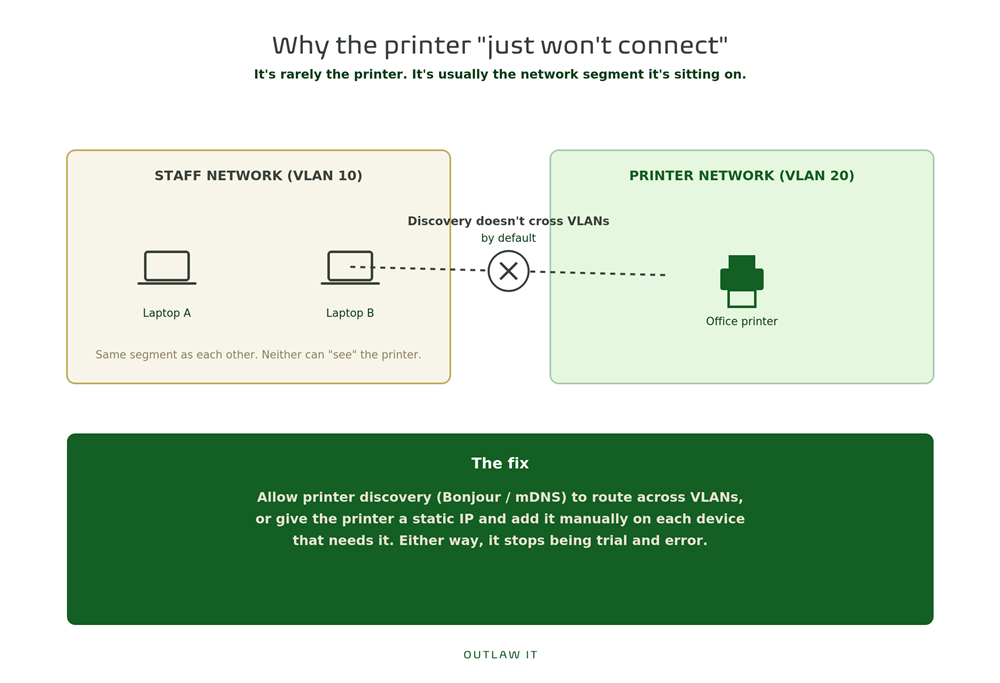
Printers and laptops on different subnets or VLANs. Many offices split their network into separate segments for security reasons (a guest WiFi network, a staff network, sometimes a separate one for IoT devices). If your printer sits on one network segment and a laptop tries to print from another, the discovery protocols that let a computer “find” a printer often don’t cross between segments by default. The printer isn’t broken. The two devices just can’t see each other.
2.4GHz vs 5GHz confusion. Older printers often only support the 2.4GHz band, while newer laptops may default to connecting on 5GHz. If your network broadcasts one SSID that automatically steers devices to whichever band it thinks is best, some devices and the printer can end up effectively separated even though they show the same network name.
IP address conflicts or printers on DHCP. If your printer’s IP address changes periodically (which happens if it isn’t set to a fixed, reserved address), any device that had it saved will suddenly be trying to print to an address that now belongs to something else, or nothing at all.
Printer sleep or power-saving modes. Some network printers drop off WiFi entirely when they go to sleep to save power, and don’t reconnect cleanly, requiring a manual nudge (or a full power cycle) to come back online.
What actually helps:
- Give printers a static IP address (or a DHCP reservation, which does the same thing without manually configuring the printer itself)
- Make sure printer discovery protocols (like Bonjour or mDNS) are allowed to cross between VLANs if staff on different network segments need to print to the same device
- Check whether your printer supports 5GHz, and if it doesn’t, make sure it’s not being pushed onto a band-steered SSID that assumes everything is dual-band
- Disable aggressive power-saving/sleep settings on printers that are causing repeated drop-offs
“Our Speeds Are Inconsistent”
This is the broadest of the three, because “slow WiFi” can genuinely be caused by almost anything. A few of the most common culprits we find:
Bandwidth actually being used up. Video calls, large file uploads to cloud storage, and automatic backups running during the working day can all eat into available bandwidth without anyone realising it’s happening. If ten people join video calls at 10am every day, that’s a real, predictable dip in speed, not a mystery.
No quality of service (QoS) configuration. Without QoS rules in place, your network treats a large file download exactly the same as a video call, and whichever started first gets priority, even if it’s less important. This is a fixable setting, not something you have to just live with.
Wired backhaul limitations. If you’ve added extra access points to cover more of the building, the cabling connecting those access points back to your router or switch matters just as much as the WiFi signal itself. An access point connected via an old or underspecced cable will bottleneck no matter how good the WiFi radio inside it is.
Contended broadband. Some business broadband packages are “contended,” meaning your bandwidth is shared with other businesses in your area, and speeds can vary depending on what everyone else is doing at the same time. It’s worth checking what kind of package you’re actually on.
What actually helps:
- Set up QoS rules that prioritise things like video calls over background downloads and updates
- Check that any wired connections between switches and access points are rated to actually carry the speeds you’re paying for
- Review your broadband contract to understand whether you’re on a contended or dedicated line, especially if speed issues follow a predictable daily pattern
- Consider whether your current package is still right for how many people and devices are actually using it now, versus when it was first set up
Quick Things to Try Today
Before booking anyone out to look at your network, a few things are worth checking yourself:
- Restart the router and access points (genuinely, it fixes more than you’d think)
- Check how many devices are currently connected and whether that number has crept up over time
- Confirm firmware is up to date on your main router at minimum
- Try printing from a laptop connected to the same network segment as the printer, to narrow down whether it’s a cross-network issue
When It’s Time for a Proper Look
If the problems keep coming back after the basics, that’s usually a sign the network needs a proper review rather than another reboot. A site survey can show you exactly where signal is weak, which channels are congested, and whether your current setup was ever actually designed for how the office is being used today versus when it was first installed.
This is exactly the kind of thing we look at as part of a wider IT health check. If WiFi drop-outs, printing issues, or inconsistent speeds are becoming a daily annoyance rather than an occasional glitch, it’s worth getting a proper diagnosis rather than guessing.