

Blog · Defender Diaries
What Happens in the Hours After Ransomware Succeeds
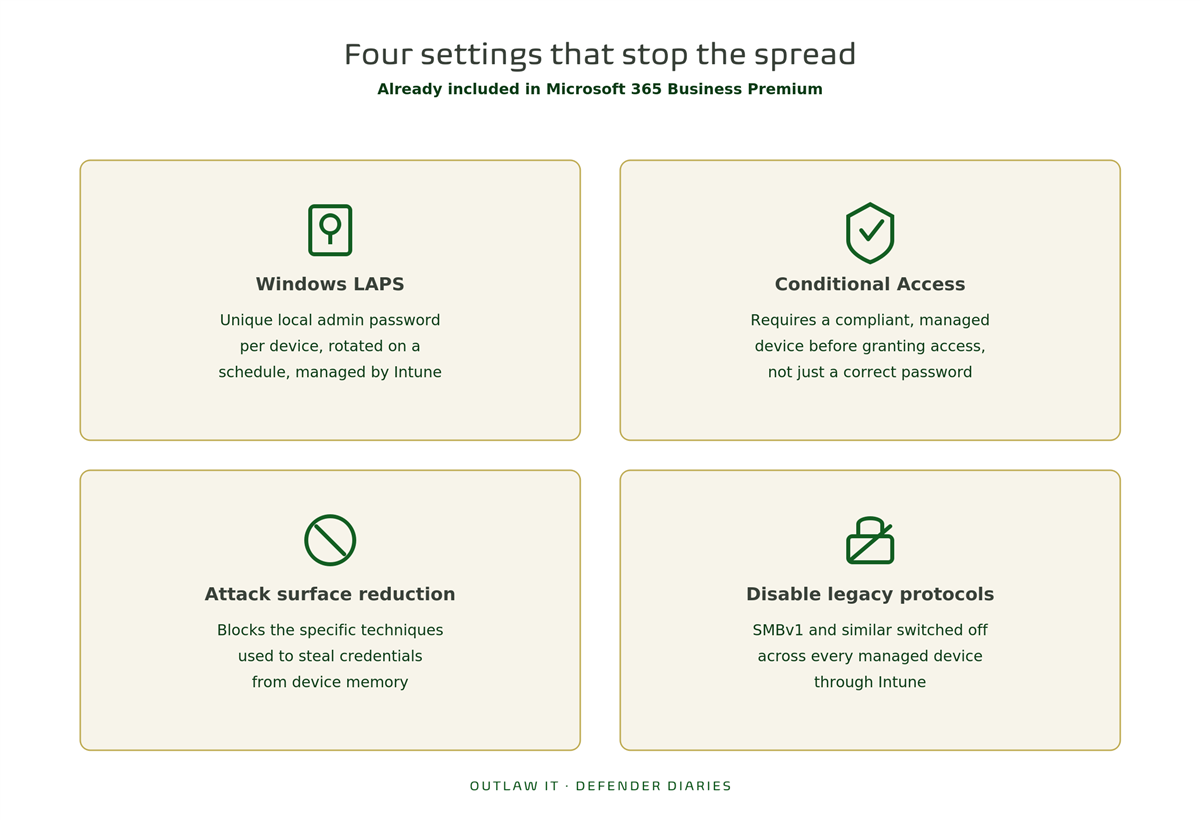
Across this series, we’ve looked at a phishing click getting stopped before it landed, an attacker’s tools getting flagged before they could do damage, and a compromised device getting boxed in before it could spread. This last part covers the scenario none of those settings fully rule out: ransomware gets through anyway.
It happens even to businesses doing everything right. The difference between a bad day and a bad year usually comes down to what happens in the first few hours, not the sophistication of the attack itself.
The First Hour Is About Containment, Not Investigation
The instinct when something’s clearly wrong is to start figuring out how it happened. Resist that for the first hour. The priority is stopping it from getting worse.
Isolate affected devices. If Defender for Business hasn’t already done this automatically (covered in Part 2), it can be done manually from the security dashboard, cutting a device off from the network while leaving it powered on for later investigation.
Disable compromised accounts, don’t just reset passwords. A password reset alone doesn’t end an active session. Disabling the account through Microsoft Entra, and revoking all active sign-in sessions, closes the door immediately rather than after the attacker’s next login attempt.
Force a check of Conditional Access policies. If Conditional Access is set up to require compliant devices (Part 3), this is the point where that pays off. Even a still-valid stolen password shouldn’t get an attacker onto a device that isn’t enrolled and compliant.
None of this requires figuring out the full story first. It requires cutting off what the attacker can still reach, right now.
Working Out What Happened
Once things are contained, the investigation can start properly.
Sign-in logs. Microsoft Entra sign-in logs show exactly which accounts were used, from where, and when, often revealing the entry point and how far an attacker got before being stopped.
Defender’s incident timeline. As covered in Part 1 and Part 2, Defender for Business builds a timeline of what happened on affected devices: the original entry point, what tools were used, and which attack surface reduction rules or behavioural detections fired along the way.
Audit logs through Purview. Microsoft Purview’s audit logging (included in Business Premium) tracks activity across mailboxes and files, useful for establishing what was accessed, moved, or deleted, and when.
Together, these give a fairly complete picture without needing separate forensics tools bolted on afterward.
Getting Data Back Without Paying Anyone
This is the part most business owners assume requires a separate backup product, and sometimes it does for a full disaster recovery plan. But Microsoft 365 Business Premium already includes some genuinely useful recovery options that get missed.
OneDrive and SharePoint version history. Files stored in OneDrive or SharePoint keep previous versions automatically. If ransomware encrypts a file, restoring an earlier version from before the attack is often possible without paying for a decryption key.
Files Restore. OneDrive for Business includes a point-in-time restore feature covering the last 30 days, letting an entire OneDrive be rolled back to before an attack happened in one action rather than file by file.
Retention policies. If retention policies are configured through Purview, a copy of affected content may be preserved regardless of what an attacker tried to delete or encrypt, since retention holds data independently of the live version.
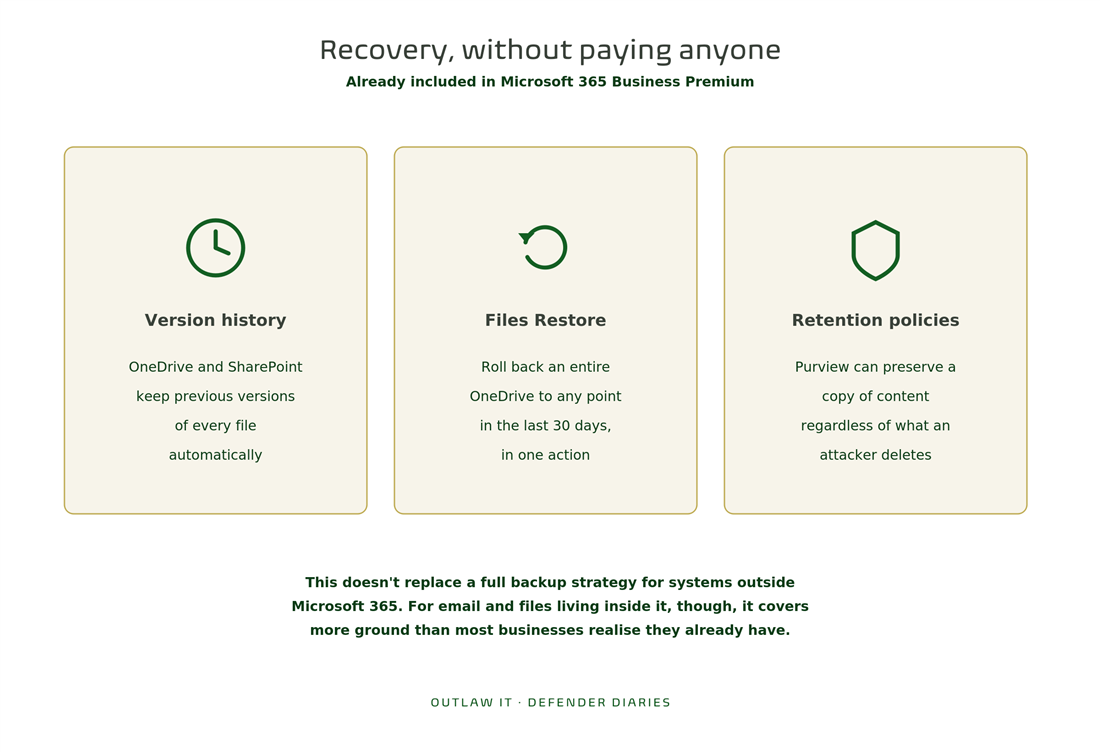
None of this replaces a proper backup strategy for critical systems outside Microsoft 365. But for email and files living inside the Microsoft 365 environment itself, these tools cover more ground than most businesses realise they already have.
The Parts That Aren’t Technical
A few things worth having settled before an incident, not during one:
- Who gets called first, and in what order (IT provider, insurer, legal advisor if needed)
- Whether personal data was affected, which may trigger reporting obligations to the ICO under UK data protection law
- What cyber insurance covers, and what it requires you to do (or avoid doing) in the first hours to stay covered
- Who’s responsible for communicating with staff, clients, and suppliers if systems are down
Having these decided in advance turns a chaotic first hour into a checklist. Working them out from scratch during an active incident costs time that’s better spent on containment.
Everything in This Series Points Here
Phishing protection, endpoint detection, and lateral movement controls all exist to reduce how often you end up in this scenario. This part exists because “reduce” isn’t “eliminate,” and being ready for the hours after an attack succeeds matters just as much as trying to stop it in the first place.
Is Your Business Ready for This Scenario?
If you’re on Microsoft 365 Business Premium, most of what’s needed to contain, investigate, and recover from a ransomware incident is already part of your license. The question is whether Conditional Access, Defender, and Purview retention are configured to make that first hour a checklist rather than a scramble.
This is exactly what we check in our Free M365 Assessment, a no-obligation review of your current Microsoft 365 environment, including how ready it leaves you if the worst happens.
That wraps up Defender Diaries. If you’ve followed all four parts, from phishing simulation to incident response, you’ve got a clearer picture of what Microsoft 365 Business Premium can do than most businesses paying for the same license. The gap, as ever, is configuration.